
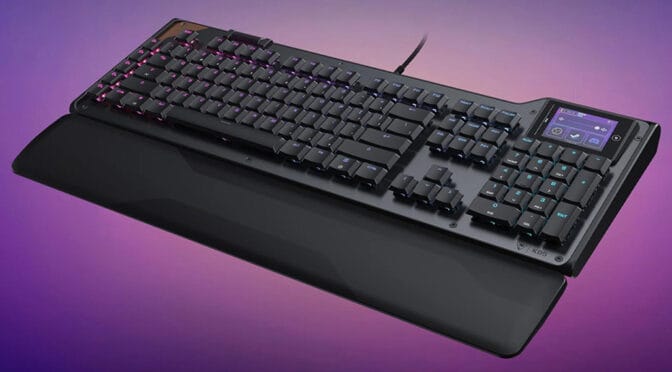
With the Command Series KB5, Turtle Beach gives players a uniquely styled, full-sized, wired mechanical keyboard with a large customisable touchscreen.
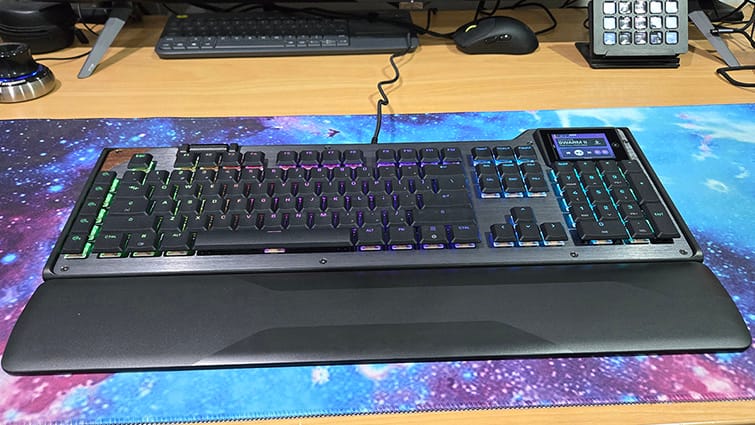
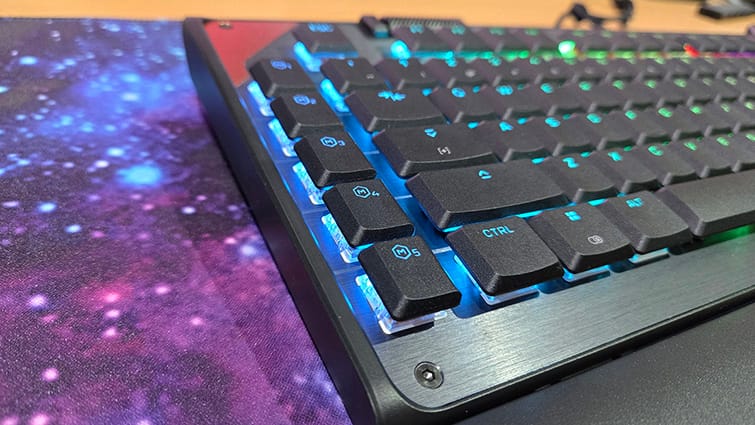
Right out of the box, the keyboard’s retro?industrial style sets it apart from most of the keyboards I’ve tested recently. The grey brushed metal chassis, accented with copper in the top?left corner and finished with exposed screws, gives it a steampunk look that flies in the face of modern keyboard design.
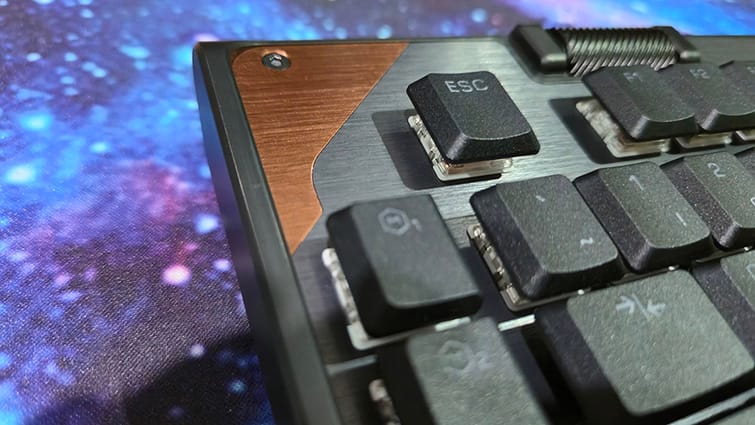
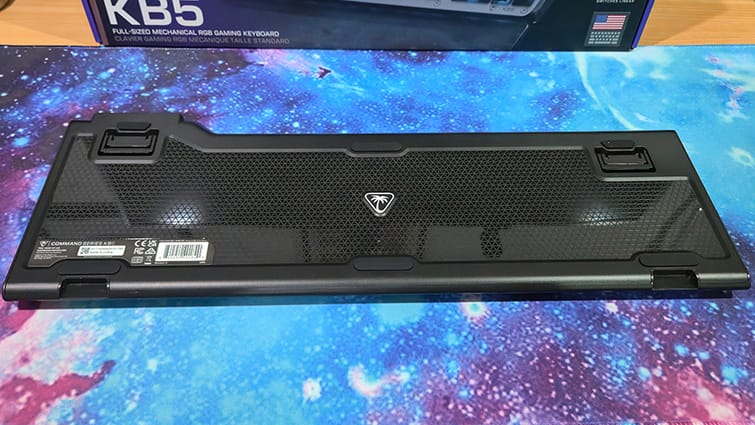
The keyboard is quite slim overall, though it includes two-stage rear stands so you can adjust the height to your liking. It’s a full-size keyboard, so it does take up a fair amount of desk space. The keys also feel wider than those on my usual everyday keyboard, which took some adjustment when typing, but it does make resting your fingers on the WASD keys more comfortable with games.
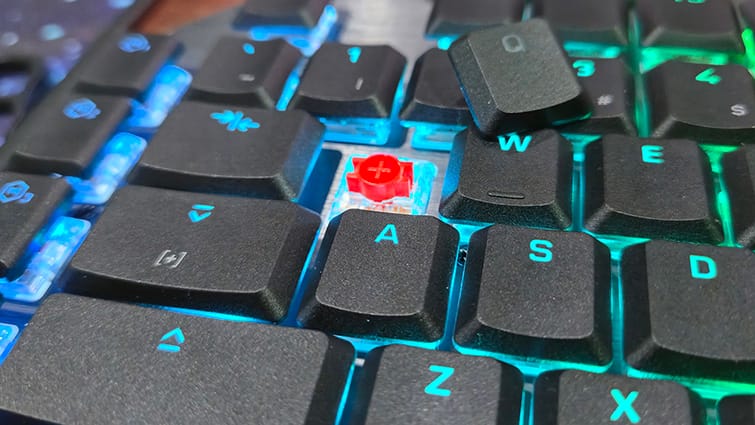
Featuring Titan low-profile mechanical switches, the KB5 has a 1.2mm actuation point and 3.1mm total travel, so keystrokes require minimal force. An 8K polling rate with 0.125ms latency also helps deliver faster response times in games. The keys feel responsive and satisfying to use, performing well in titles like Call of Duty: Black Ops 7. Its ergonomics were especially noticeable while playing the RPG Fatekeeper, currently in early access, where the lack of controller support makes a comfortable keyboard setup all the more important.
The optional plastic wrist rest clips neatly onto the front of the keyboard. It would have been better if it had a softer finish, but I still found it comfortable enough to use. If you prefer to go without it, that is not an issue, as the keyboard looks just as good on its own.
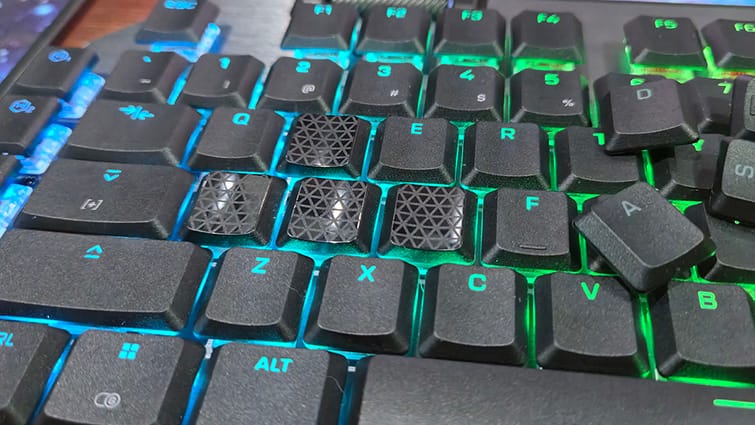
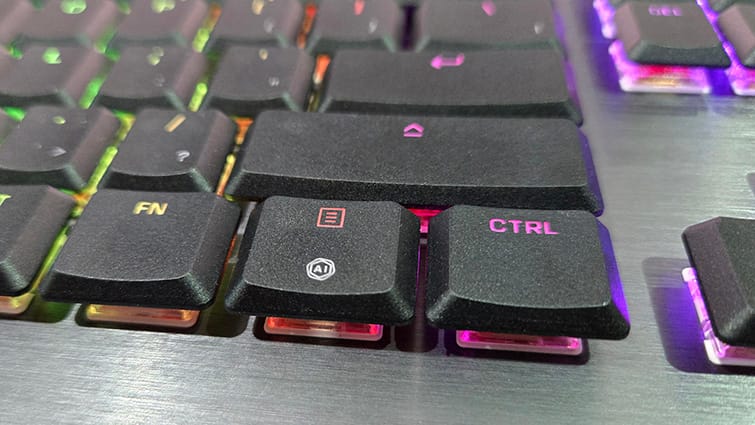
Turtle Beach clearly wants you to make this keyboard your own. In the box, there’s a small packet with a keycap puller and four replacement keycaps for the WASD keys. These alternative caps for the standard movement buttons don’t have letters on them, but instead feature a textured surface, apparently to provide extra grip. I’m not sure it made much difference for me, to be honest, but it’s still a cool addition.
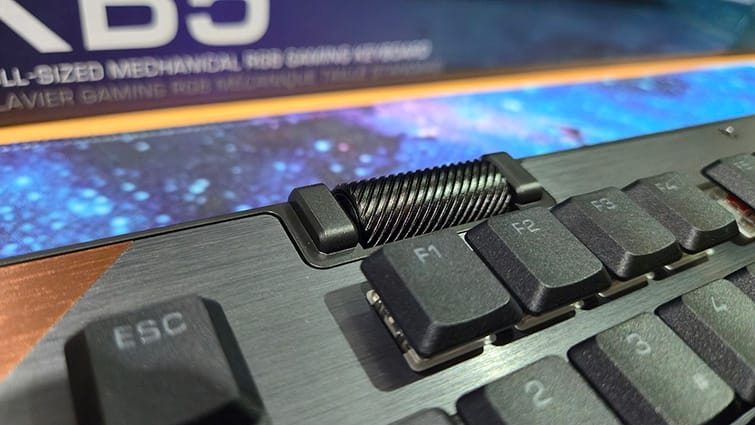
At the top left of the keyboard is a distinctive volume barrel. By default, rolling it forward raises the volume, while rolling it back lowers it, and pressing it mutes the audio. It might look a little unusual at first, but it’s easily the most intuitive way I’ve used to adjust volume quickly from the desktop.
To the left of the main keyboard are five customisable menu buttons. Using the free Turtle Beach Swarm II software, you can program these to launch your favourite apps or function as macros.
Like most PC hardware, the KB5 relies on a companion utility to get the most out of it. The Turtle Beach Swarm II app is free to download from the Turtle Beach website and serves as a unified hub for customising a range of Turtle Beach devices, as well as handling firmware updates.
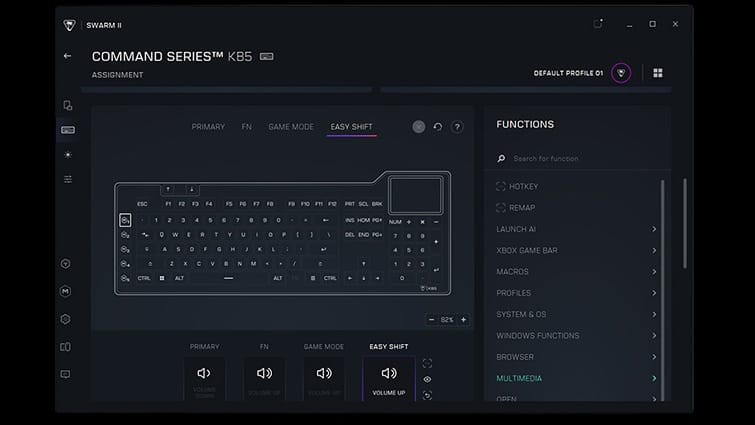
Unfortunately, the software didn’t get along with my test system, likely due to the number of device-related apps I’ve installed over time. On a fresh laptop, however, it ran without any problems. Once up and running, it easily updated the keyboard’s firmware and provided options to adjust the overall lighting, per-key illumination, and display features.
The standout feature of the KB5 is the 2.4-inch Command Touch Display, positioned at the top right above the number pad. It offers five programmable profiles, each with three pages and up to six virtual buttons per page, giving you as many as 18 customisable shortcuts and inputs. The compact display works in a similar way to a Stream Deck or Corsair’s Gallion 100 SD, allowing you to use preset templates or create your own.
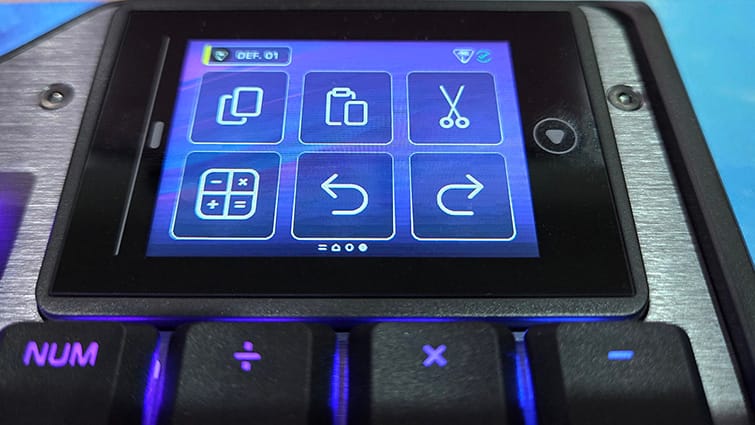
You can set up the display for your favourite games and apps to get straight into the action, or use it to optimise your workflow with custom, at-a-glance controls. I found setting up the KB5 display to be very intuitive, even easier than a Stream Deck. It’s great for launching game clients like Steam, GOG, and Epic without any hassle. Taking in-game screenshots and video is simple, and of course, if you’re streaming, the display really comes into its own.
The Turtle Beach Command Series KB5 mechanical keyboard stands out as a unique option, blending a retro look with modern features. While the built-in touchscreen might initially seem like a gimmick, it’s actually practical and easy to customise. The extra menu buttons are especially useful for gamers and can double as convenient shortcuts for productivity tasks. Although it takes a little time to get used to, it’s a fun and distinctive keyboard that will particularly appeal to fans of the steampunk design.